
acer SB240Y G0bi
4.6Editor score
120Hz refresh rate
IPS panel
Zero frame design
Edge to edge monitors provide immersive viewing experiences by minimizing bezels and maximizing screen real estate. These displays are ideal for multitasking, creative work, and gaming where visual continuity matters. Finding the right model depends on your specific needs and budget constraints.
We evaluated ten top models based on panel technology, refresh rates, connectivity options, and ergonomic features. Our analysis includes ultrawide curved screens and standard formats with slim frames. Each product was reviewed for performance, build quality, and user feedback from verified buyers.
Every pick highlights key strengths and potential trade-offs to help you decide quickly. Prices and availability fluctuate so check current listings before purchasing. Use this guide to find the perfect display for your workspace or gaming station today.
4.6Editor score
4.4Editor score

4.3Editor score
As an Amazon Associate we earn from qualifying purchases.
This side-by-side comparison highlights the key specifications and features of each monitor. Use it to quickly identify which model fits your resolution, speed, and connectivity requirements.





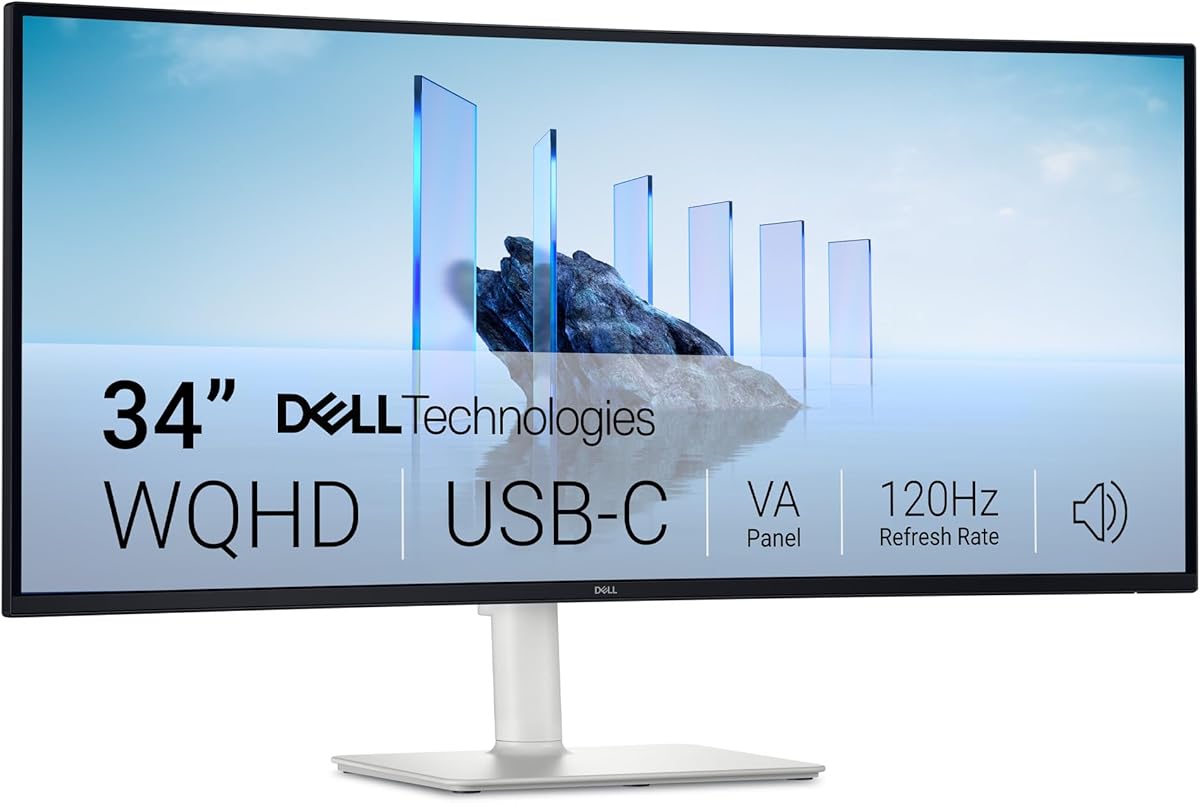
The Dell 34 Monitor S3425DW combines comfort and performance for daily use. Rated 4.4 stars by users, it delivers vivid colors with 99 percent sRGB coverage. Its 120Hz refresh rate ensures smooth visuals for both work and casual gaming sessions.
We may earn a commission when you buy through this link, at no additional cost to you.
This monitor excels with a VA panel offering deep contrast ratios of 3000 to 1. Improved ComfortView Plus technology reduces blue light emissions significantly to protect your eyes. The USB-C port supports up to 65W power delivery allowing you to connect laptops easily with one cable.
While the VA panel provides excellent contrast viewing angles are narrower than IPS alternatives. The integrated speakers are surprisingly robust but may not replace dedicated audio systems for critical listening. Overall trade-offs are minimal for most productivity and multimedia tasks.
Buy this monitor if you value eye comfort and strong color performance without breaking the bank. It suits office workers and casual gamers needing a reliable ultrawide display. The blend of features makes it a standout choice for versatile setups.
Reduces harmful blue light to 35 percent without sacrificing color accuracy for all-day comfort.
Single cable connects and powers devices up to 65W keeping your desk organized and tidy.
We may earn a commission when you buy through this link, at no additional cost to you.
The Z-Edge 49 inch Ultrawide offers a cinematic experience with its 49 inch 32 to 9 aspect ratio. Rated 4.5 stars it provides dual QHD resolution equivalent to two monitors side by side. The 165Hz refresh rate and 1ms response time deliver smooth visuals for gaming and scrolling.
We may earn a commission when you buy through this link, at no additional cost to you.
This display shines for multitasking with Picture-in-Picture and Picture-by-Picture modes. Built-in KVM allows control of two devices with one keyboard and mouse setup. The 1500R curve wraps around your field of view enhancing immersion during work or play.
The massive screen demands significant desk space and careful cable management. While powerful the unit is heavy and requires a stable surface to prevent wobbling. Users may need to adjust brightness settings for optimal viewing in bright rooms.
Choose this monitor if you need maximum screen real estate for professional workflows or immersive gaming. It is ideal for designers video editors and power users managing multiple streams of content. The KVM feature adds exceptional value for dual PC setups.
The 32 to 9 aspect ratio replaces two standard monitors for seamless multitasking without bezels.
Control two devices with one keyboard and mouse saving desk space and reducing peripheral clutter.
We may earn a commission when you buy through this link, at no additional cost to you.
The acer SB240Y G0bi delivers impressive value with its zero frame edge to edge design. Rated 4.6 stars it offers a 23.8 inch IPS panel with Full HD resolution. The 120Hz refresh rate and 1ms response time ensure smooth motion for gaming and videos.
We may earn a commission when you buy through this link, at no additional cost to you.
Its slim profile and wide viewing angles make it suitable for small desks or dual setups. Adaptive Sync support eliminates screen tearing and provides fluid visuals during fast-paced tasks. The monitor includes HDMI and VGA ports for broad compatibility with older devices.
Full HD resolution may appear less sharp on larger screens compared to QHD models. The lack of USB-C limits connectivity options for modern laptops. Adjust brightness carefully to prevent eye strain during long sessions due to 250 nits brightness level.
This monitor is perfect for budget-conscious buyers needing reliable performance for office work or casual gaming. It fits students and home users prioritizing cost without sacrificing basic quality. The edge to edge design maximizes screen visibility effectively.
Slim bezels provide maximum visibility and seamless multi-monitor alignment for larger workstation setups.
Wide viewing angles and consistent colors ensure accurate visuals from any seating position around the desk.
We may earn a commission when you buy through this link, at no additional cost to you.
The Dell UltraSharp U4924DW is a premium choice for professionals seeking productivity. Rated 4.2 stars it features a 49 inch curved screen with Dual Quad HD resolution. The USB Type-C connection supports data transfer and power delivery simultaneously for streamlined setups.
We may earn a commission when you buy through this link, at no additional cost to you.
Its Edge WLED backlight technology ensures clear and smooth displays for detailed work. The monitor includes multiple ports for connecting various devices without adapters. Users appreciate the ergonomic stand with height and tilt adjustments for comfortable viewing angles.
The higher price point may not suit all budgets compared to competitors. The 5ms response time is adequate for office tasks but less ideal for fast-paced gaming. Some users report needing calibration for best color accuracy out of the box.
Select this monitor if you need a reliable high-resolution display for professional workflows. It is excellent for finance traders software developers and content creators. The USB-C connectivity and build quality justify the investment for business environments.
Connect peripherals and charge your laptop with one cable reducing clutter on your workspace.
Delivers uniform brightness and clear visuals essential for text readability and graphic design work.
We may earn a commission when you buy through this link, at no additional cost to you.
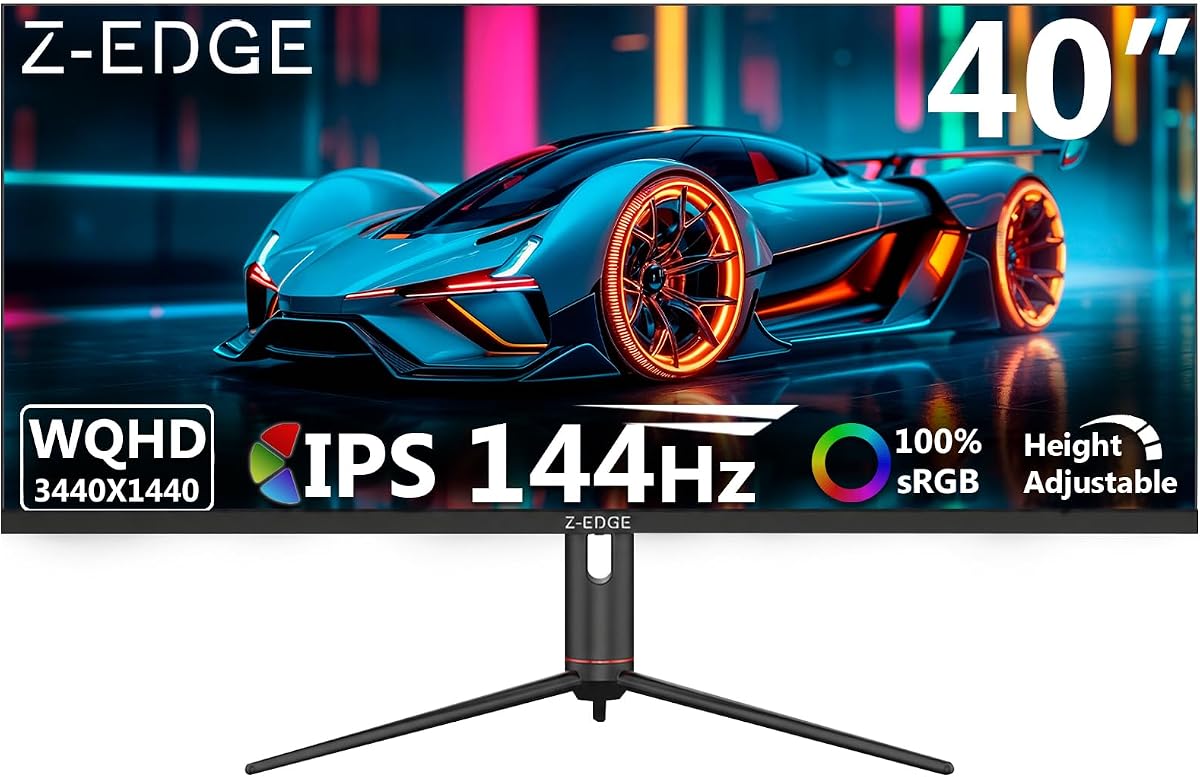
The Z-Edge 40 inch Ultrawide balances gaming performance and productivity well. Rated 4.5 stars it uses an IPS panel for vibrant colors and wide viewing angles. The 144Hz refresh rate via DisplayPort ensures fluid motion during competitive gaming sessions.
We may earn a commission when you buy through this link, at no additional cost to you.
Features like PIP and PBP modes allow multitasking without switching screens. The fully adjustable stand supports height tilt and swivel for optimal ergonomics. Built-in speakers provide clear audio for daily use though external options may be preferred for immersion.
Contrast ratios are typical for IPS panels meaning blacks may appear gray in dark rooms. HDR support is limited so dark scene details might lack depth compared to OLED displays. Users should adjust settings manually for best visual performance.
This monitor is ideal for gamers wanting ultrawide immersion without premium pricing. It fits well in mixed use setups for gaming and work. The IPS panel ensures consistent colors which benefits creative tasks alongside gaming.
Consistent color accuracy and wide viewing angles make it versatile for design and gaming.
Full height tilt and swivel adjustments reduce neck strain during extended use sessions.
We may earn a commission when you buy through this link, at no additional cost to you.
The Corsair XENEON Edge 14.5 is a unique portable display for system monitoring. Rated 4.1 stars it features a 14.5 inch 2K resolution touchscreen. It can be mounted inside PC cases or used as a standalone display for widgets.
We may earn a commission when you buy through this link, at no additional cost to you.
The five-point multi-touch capacitive screen makes interacting with apps intuitive. Installation includes magnets for internal mounting or a standalone stand for external use. Its compatibility with various devices makes it versatile for monitoring tools or secondary info.
The small screen size limits traditional productivity uses like document editing. Mounting inside a case requires compatible fan positions for secure installation. Users may need extra cables to connect it to non-USB-C laptops effectively.
Buy this for tech enthusiasts wanting system metrics visible at a glance. It suits modders and gamers tracking real-time data easily. The touchscreen and portability offer unique flexibility not found in standard monitors.
Use as secondary display internal monitor or external screen depending on your setup needs.
Five-point multi-touch allows natural interaction with applications and widgets on the display.
We may earn a commission when you buy through this link, at no additional cost to you.
The Sceptre Curved 34 inch delivers high refresh rates at a budget price. Rated 4.4 stars it offers 240Hz refresh rate for ultra-smooth gaming experiences. The WQHD resolution and 100% sRGB ensure sharp and accurate visuals.
We may earn a commission when you buy through this link, at no additional cost to you.
Two HDMI and two DisplayPort inputs provide versatile connectivity options. Built-in speakers help maintain a clean desk setup while playing. Blue-Light Shift technology protects eyes during long usage sessions effectively.
Build quality is functional but lacks premium feel compared to higher-end models. The stand offers limited adjustability so consider a VESA mount for ergonomics. Color accuracy may vary requiring calibration for professional creative work.
This monitor is perfect for competitive gamers prioritizing speed over aesthetics. It fits budget builds needing high performance without overspending. The combination of refresh rate and resolution makes it a strong contender in its class.
240Hz refresh minimizes motion blur providing competitive advantage in fast-paced games.
Blue-Light Shift reduces eye strain helping you work or play longer comfortably.
We may earn a commission when you buy through this link, at no additional cost to you.
The LG 45GX950A-B sets a new standard for ultrawide OLED gaming. Rated 4.3 stars it offers world-first 5K2K resolution with perfect blacks and vibrant colors. The 165Hz refresh rate and 0.03ms response eliminate motion blur completely.
We may earn a commission when you buy through this link, at no additional cost to you.
Dual Mode allows switching between 5K2K and WFHD at 330Hz for different game types. USB-C with 90W power delivery supports laptops directly. DisplayPort 2.1 ensures high-speed data transfer for next-gen consoles and PCs.
The high price makes it inaccessible for many users seeking budget options. OLED panels carry potential burn-in risks with static images though mitigation features exist. Brightness may vary depending on content type due to ABL technology.
Invest in this if you want top-tier visuals and future-proof connectivity. It suits enthusiasts and professionals needing deep blacks and high detail. The dual-mode feature offers unique flexibility for varied gaming styles.
Infinite contrast ratio provides true blacks and vivid colors unmatched by LED monitors.
Switch resolutions instantly for either detailed visuals or ultra-fast refresh rates.
We may earn a commission when you buy through this link, at no additional cost to you.
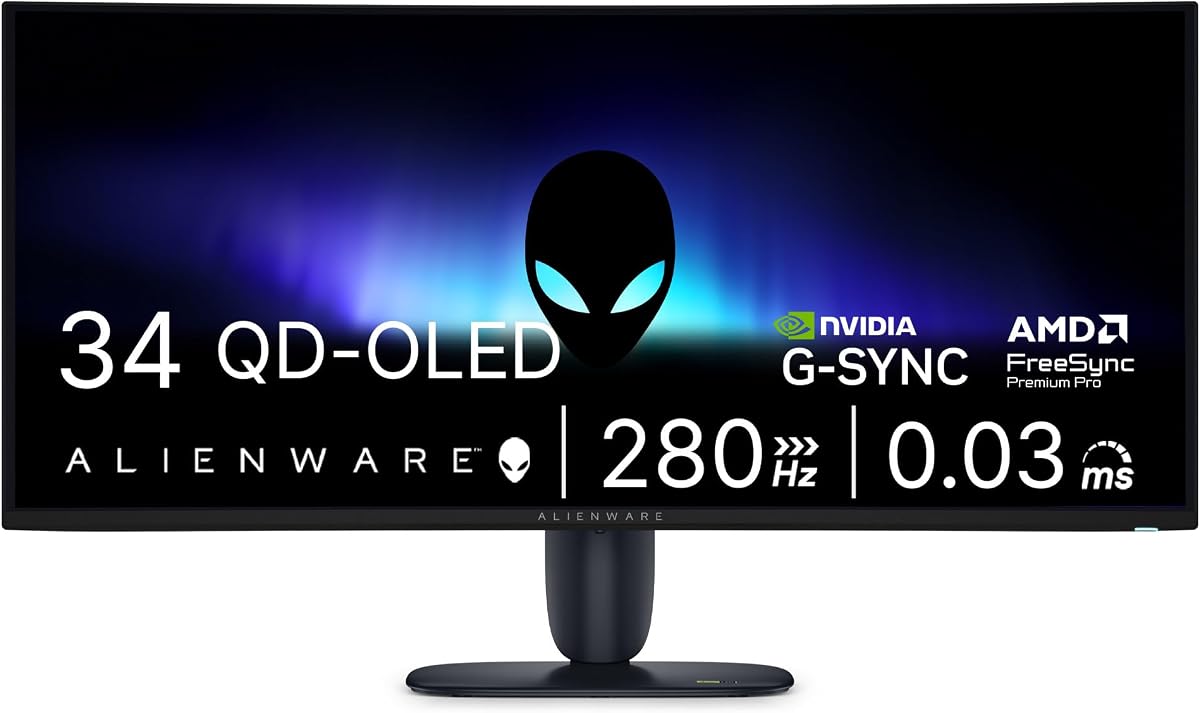
The Alienware 34 Gaming Monitor combines QD-OLED with high speed performance. Rated 4.2 stars it features 280Hz refresh rate for ultra-responsive competitive gaming. The QD-OLED panel delivers vibrant colors and deep blacks with high brightness levels.
We may earn a commission when you buy through this link, at no additional cost to you.
G-SYNC ensures smooth visuals without tearing during intense gaming. The design includes customizable lighting for aesthetics on your desk. Connectivity options are robust with HDMI 2.1 and DisplayPort support for next-gen systems.
The price remains high compared to standard LED competitors significantly. Menu navigation for OSD can be unintuitive without manual reference. Burn-in prevention features add complexity but help maintain long-term display health.
Choose this for competitive esports needing maximum speed and visual fidelity. It fits enthusiasts prioritizing refresh rate and panel quality equally. The combination of technologies offers a future-proof setup for serious gaming.
Industry-leading refresh rate minimizes input lag for competitive multiplayer gaming scenarios.
Quantum dot OLED delivers 100% color coverage with deeper blacks for cinematic visuals.
We may earn a commission when you buy through this link, at no additional cost to you.
The Samsung 57 Odyssey Neo G9 offers unparalleled immersion with its 57 inch screen. Rated 4.3 stars it delivers Dual 4K resolution for pin-sharp visuals. The 240Hz refresh rate and 1ms response provide smooth gaming without lag.
We may earn a commission when you buy through this link, at no additional cost to you.
Quantum Matrix Technology with Mini LEDs enhances contrast and brightness significantly. The 1000R curve wraps around your vision for maximum immersion. CoreSync projects game colors into your room lighting for added atmosphere.
It requires massive desk space and strong wall mounting options potentially. The price point is premium and may exceed most budgets easily. High brightness can cause glare in darker environments without proper room lighting control.
Opt for this if immersion and resolution are your absolute top priorities. It suits dedicated gaming rooms and simulation enthusiasts needing realistic visuals. The screen real estate and HDR performance are unmatched in the market.
57 inch display offers resolution equivalent to two standard UHD monitors for clarity.
Local dimming zones create deep blacks and bright highlights for HDR gaming.
We may earn a commission when you buy through this link, at no additional cost to you.
Selecting the right edge to edge monitor depends on understanding specific factors like panel type, refresh rate, and connectivity. These elements directly impact your workflow and entertainment experience.
Panel technology defines color accuracy contrast and viewing angles. VA panels offer deep blacks ideal for media consumption while IPS provides consistent colors from wide angles. OLED delivers perfect blacks and fast response times but commands a higher price.
Choose VA for dark room viewing and IPS for color-critical tasks. Consider OLED for premium visuals if budget allows.
Refresh rate determines how smoothly motion appears on screen measured in Hertz. Higher rates like 144Hz or 240Hz benefit gaming and fast-moving content significantly. Response time affects motion blur with lower values like 1ms being preferable for action.
Look for at least 120Hz for smooth visuals. Competitive gamers should prioritize 240Hz and sub-millisecond response times.
Resolution impacts text clarity and image detail. Edge to edge monitors often come in Ultrawide aspect ratios like 21:9 or 32:9 offering more horizontal space. Higher resolutions like QHD or 4K ensure sharpness across larger screen real estate.
Select QHD or higher for detailed work. Wider aspect ratios enhance multitasking and immersive gaming experiences.
Connectivity affects how easily you can link devices. USB-C is essential for modern laptops needing single-cable power and data. HDMI and DisplayPort versions determine maximum resolution and refresh rate support for consoles and PCs.
Verify USB-C supports adequate wattage for charging. Ensure HDMI or DisplayPort versions match your device output capabilities.
Ergonomic stands with height tilt and swivel reduce strain during long sessions. VESA compatibility allows mounting on arms for flexible positioning. Proper adjustability helps align the screen with eye level and viewing distance.
Prioritize models with full stand adjustments. Use VESA mounts if you prefer flexible arm mounting options.
Built-in features like speakers USB hubs or KVM switches add convenience. KVM allows controlling multiple computers with one set of peripherals. USB hubs reduce external adapter needs keeping desks organized and clean.
Look for KVM if you use multiple PCs. USB hubs simplify cable management significantly.
Eye comfort features reduce strain during extended use. Low blue light modes and flicker-free technologies help maintain comfort. Certifications ensure these technologies meet industry standards for safety and effectiveness.
Choose monitors with certified eye comfort features. Active blue light filters help maintain healthier viewing habits.
Price reflects features and build quality significantly. Higher cost often includes better panel tech and connectivity options. Determine your budget range to balance essential specs with optional extras effectively.
Set a clear budget before searching. Prioritize core features over aesthetic extras if funds are limited.
Place your monitor on a stable surface away from direct sunlight to prevent glare. Adjust the stand height so the top of the screen aligns with your eye level for ergonomic viewing comfort.
Use the correct cables like HDMI 2.1 or DisplayPort 2.1 to support maximum refresh rates. Ensure power connections are secure and consider a surge protector to prevent damage from power spikes.
Clean the screen gently with a microfiber cloth to avoid scratches. Avoid chemical cleaners directly on the panel. Keep firmware updated through manufacturer software to maintain performance and security.
An edge to edge monitor features minimal bezels allowing a continuous screen area from one side to the other. This design maximizes visibility and supports seamless multi-monitor setups for professional or personal use.
Ultrawide monitors provide expansive horizontal space which helps multitasking and timeline editing. They reduce the need for multiple screens but may require adjustment to workflow habits for optimal efficiency.
Many models include built-in speakers for basic audio needs like meetings or casual media. However audiophiles may prefer external speakers for better sound quality and depth in gaming or music.
Most support laptops via USB-C HDMI or DisplayPort. USB-C models often provide power delivery allowing single-cable connections for charging and data transfer simultaneously without extra dongles.
For casual gaming 120Hz provides smooth visuals while competitive gaming benefits from 240Hz or higher. Matching refresh rate to your graphics card output ensures optimal performance and eliminates screen tearing.
Use a dry microfiber cloth to wipe dust gently. For smudges, lightly dampen the cloth with water and avoid spraying liquid directly on the screen to protect internal components from damage.
The Dell 34 Monitor S3425DW acer SB240Y G0bi and LG 45GX950A-B stand out across different needs. Each offers distinct advantages whether you prioritize comfort budget or premium visuals.
Prioritize resolution and refresh rate based on your primary usage. Professionals may value color accuracy while gamers need speed and response time for smooth gameplay experiences.
Prices fluctuate frequently so always verify current deals before purchasing. Use this guide as a reference to find the model that fits your specific workspace requirements today.